
Before Windows Setup Starts
This guide starts on the Preparing Installation screen in PC-DNA. You can scan the QR code on that screen to open this page on your phone while the preparation continues.
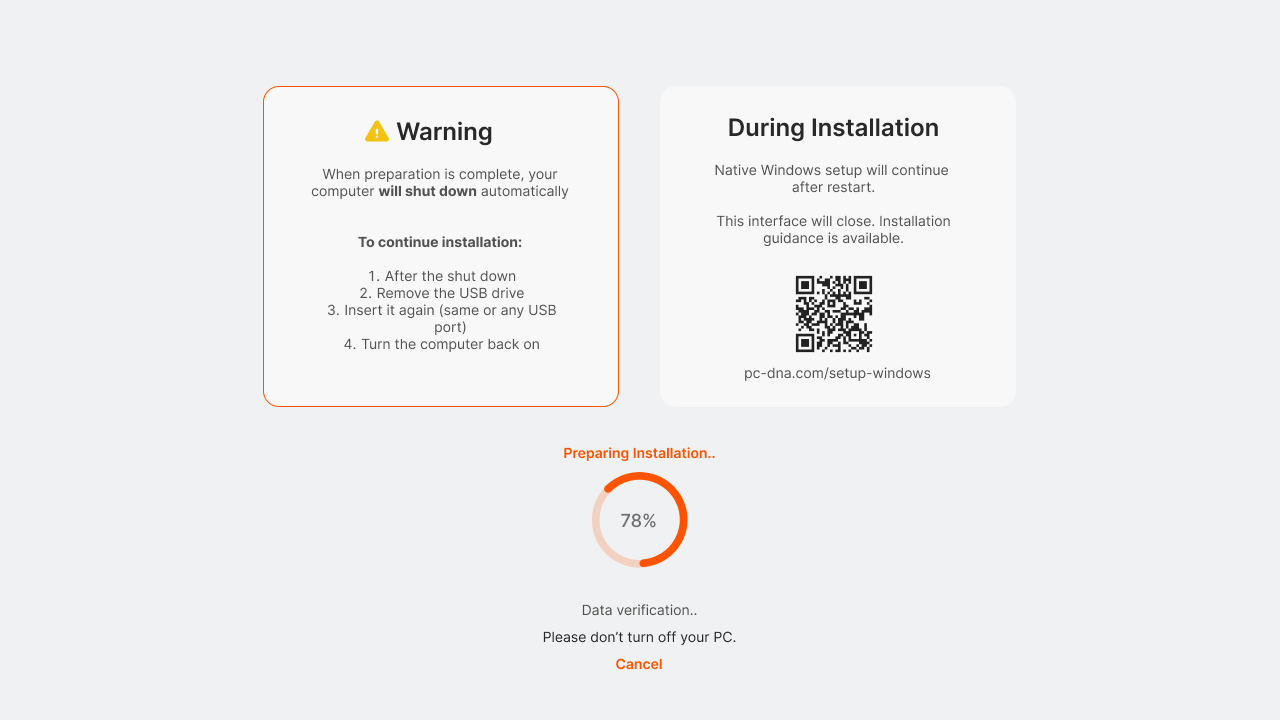
Please wait for preparation to finish. Do not turn off the computer or remove the PC-DNA USB drive while the progress indicator is running.
Remove the USB and Shut Down
When preparation is complete, PC-DNA will show its shutdown screen. Follow the instruction shown there:
- Remove the PC-DNA USB drive when Eject USB is highlighted.
- Press Enter.
- Wait for the computer to shut down normally.
If You See SquashFS Messages
In rare cases, a black screen with repeated SQUASHFS error messages can appear after you remove the USB drive and press Enter.
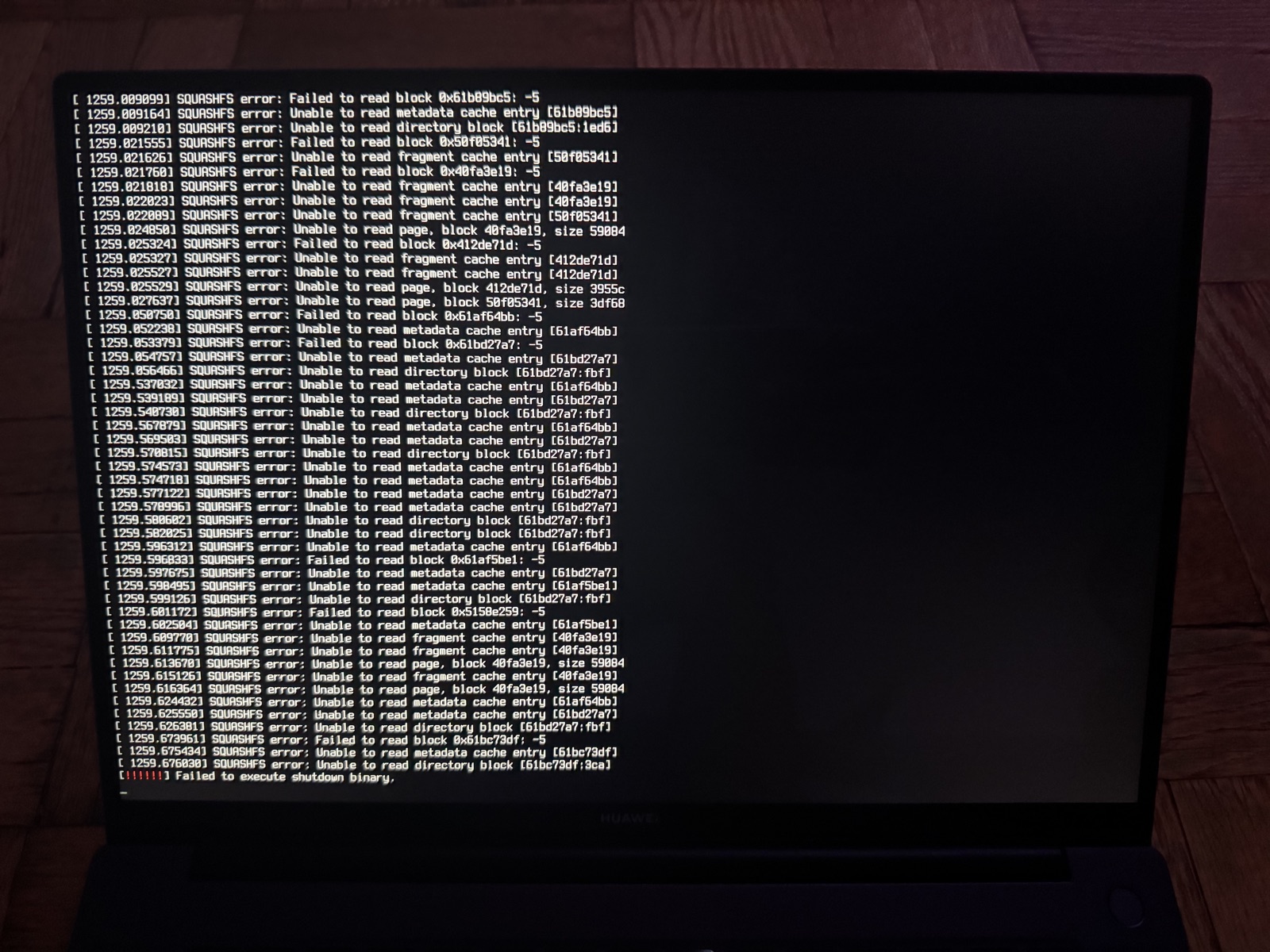
Do not worry — this is harmless. It simply means the USB drive was disconnected while PC-DNA was finishing its shutdown. The prepared Windows installer and your computer are not affected. Insert the USB drive again, turn the computer on, and continue with the next step.
Start Windows Installer
- Insert the PC-DNA USB drive again, preferably into the same USB port.
- Turn the computer on.
- PC-DNA’s boot menu should open with Windows Installer already selected. Do not press anything — wait for Windows Setup to open.
Resuming later: if you interrupt the installation after preparation and need to continue later, open PC-DNA’s boot menu and select Windows Installer yourself.
If PC-DNA does not open and your old system or another screen appears instead, open your computer’s Boot Menu or BIOS again and select the PC-DNA USB drive.
Language and Keyboard Settings
On the first two screens, choose your language, time and currency format, and keyboard layout. The default settings work for most people — click Next to continue.
Selecting the Windows Edition
Setup shows the edition you selected earlier in PC-DNA. Click Next, accept the license terms, and continue.
Choose the Windows Drive
This is the most important step: deleting or formatting a partition permanently erases its files.
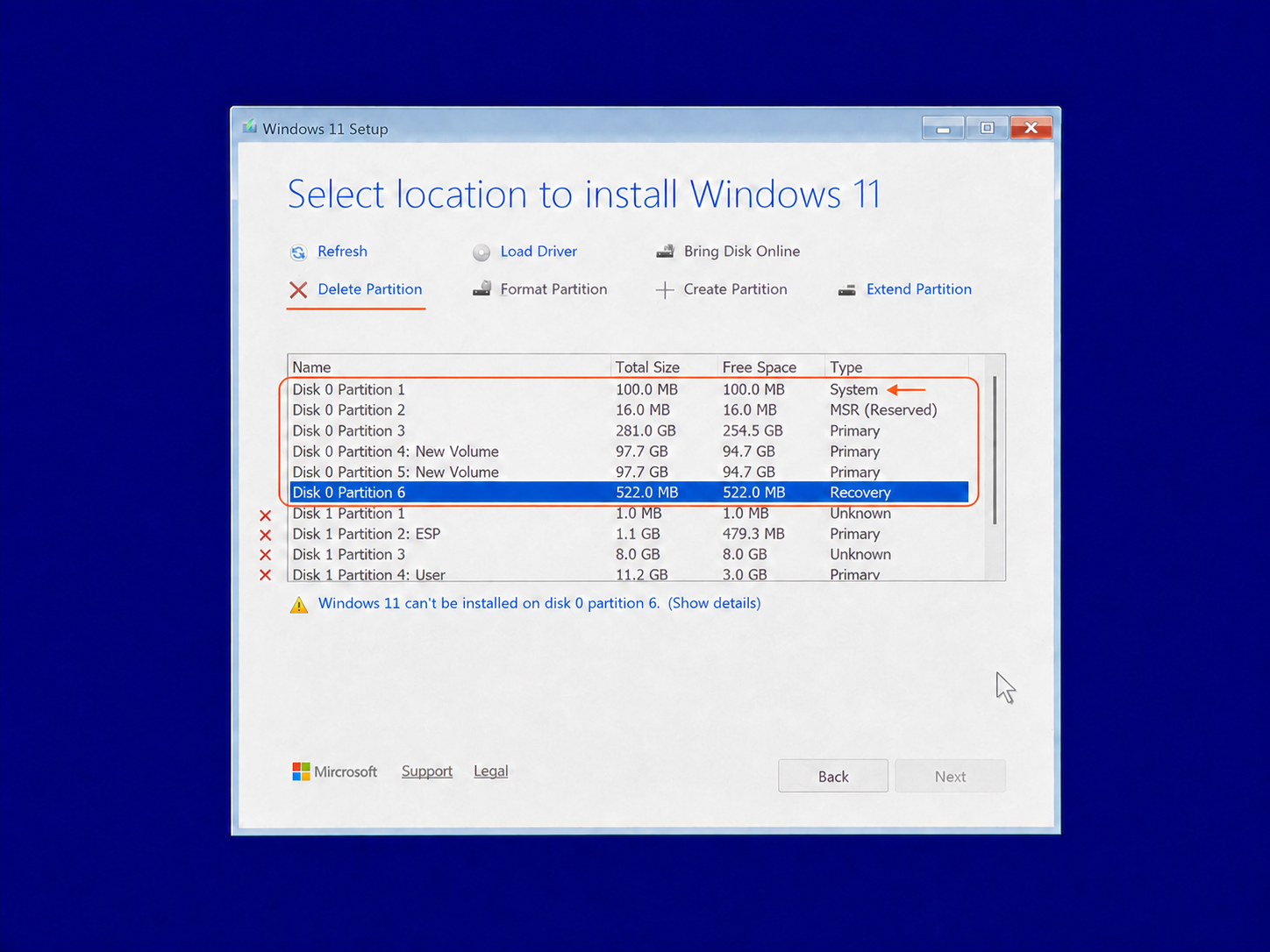
In this example, Disk 0 is the internal Windows drive. Before deleting anything, check that it contains a small System partition, an MSR (Reserved) partition, and your larger Primary partitions. Also compare the capacity with the drive in your computer.
Do not delete the PC-DNA USB partitions. In this example they are on Disk 1. Disk numbers can differ between computers, so do not rely on the number alone. If you are unsure which drive is internal, stop and contact support before deleting anything.
After you have confirmed the internal Windows drive, select each of its partitions one at a time and click Delete Partition. Confirm each prompt. Repeat until every partition on that drive has been removed.
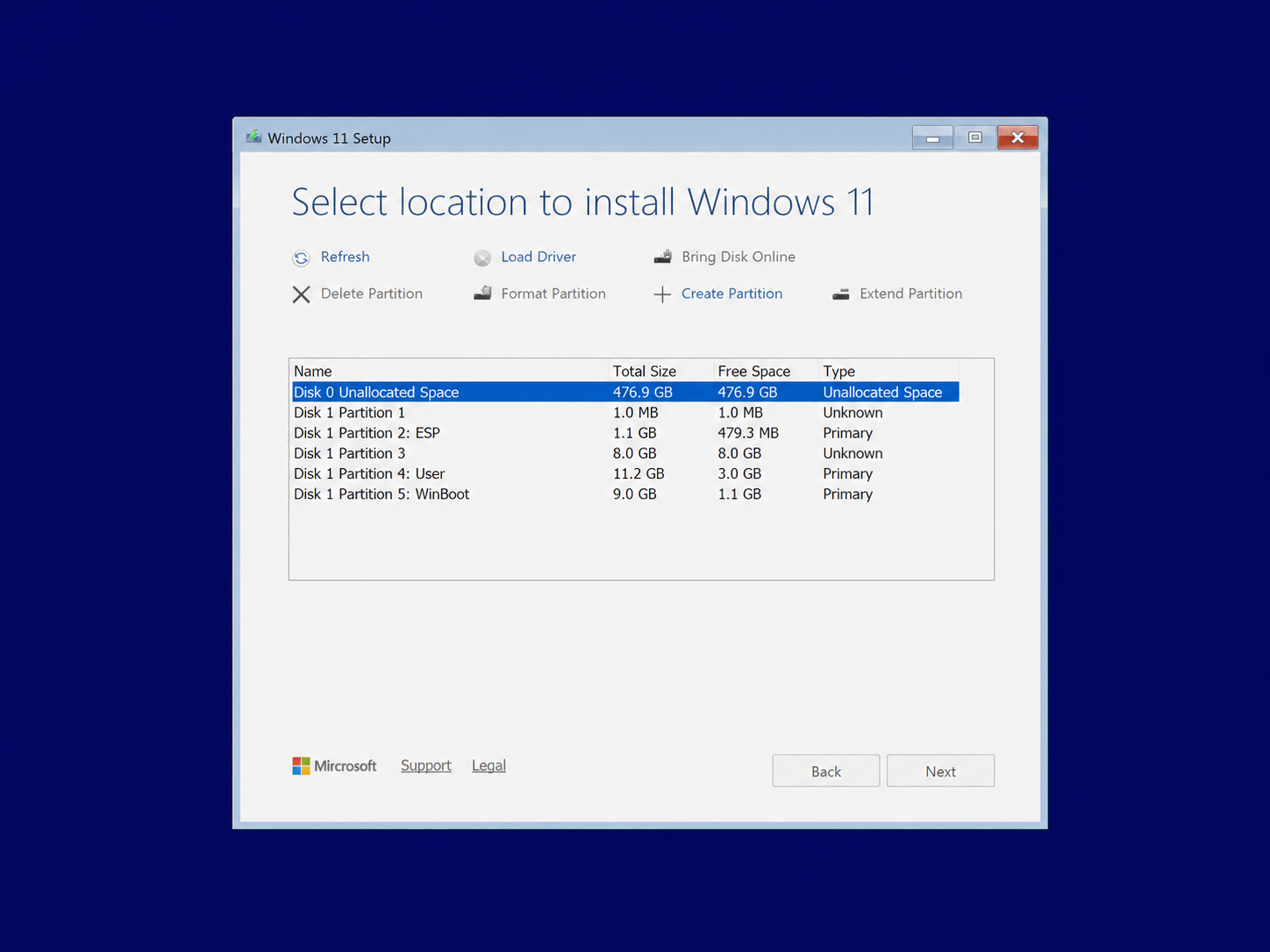
When the drive is empty, it appears as Unallocated Space. Select it and click Next. Windows will create the required partitions automatically.
Ready to Install
Review the summary, then click Install to begin.
Windows Installation
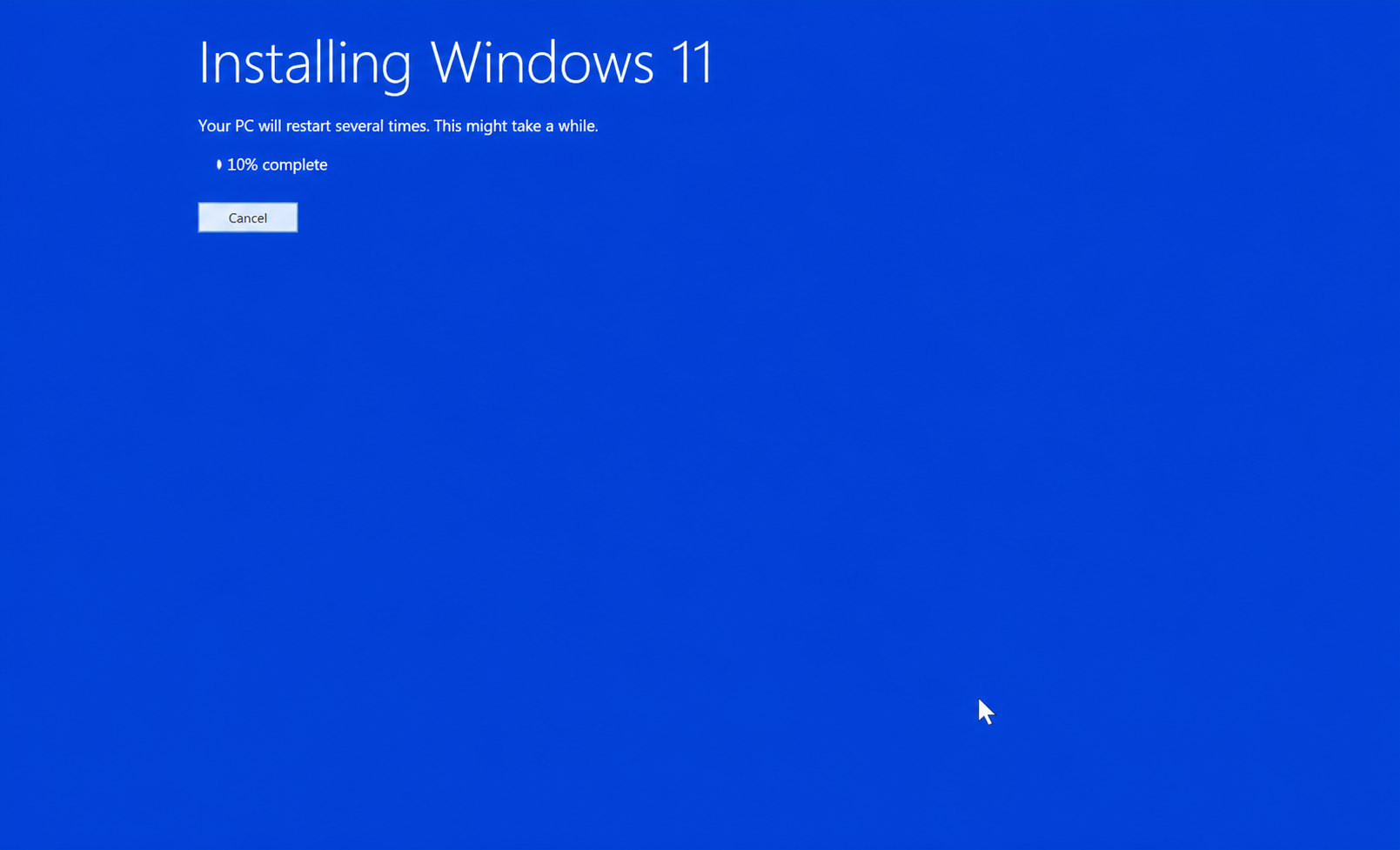
The computer will not need input for a while. It may restart on its own, and the screen may briefly turn black or blue — this is normal.
If the computer restarts and returns to the first language-selection screen, do not start over. Turn the computer off, remove the PC-DNA USB, and turn it back on. Setup will resume automatically.
Region and Keyboard Layout
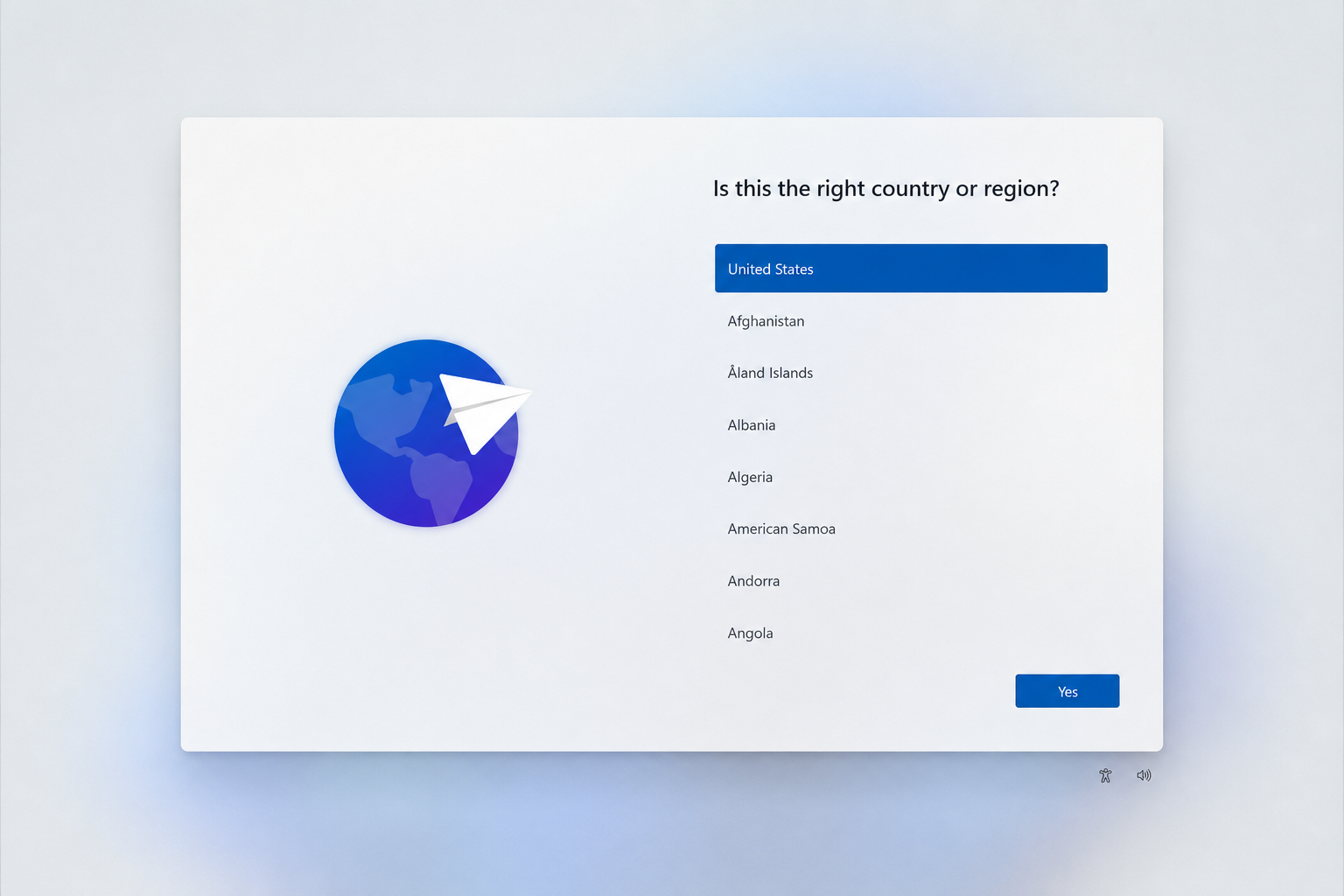
Choose your region, then confirm your keyboard layout. If Windows offers a second keyboard layout and you do not need one, choose Skip.
Name Your Device
Enter a name for the computer, then click Next. This is only how the device appears on your network and in Windows settings.
Choose a Setup Option
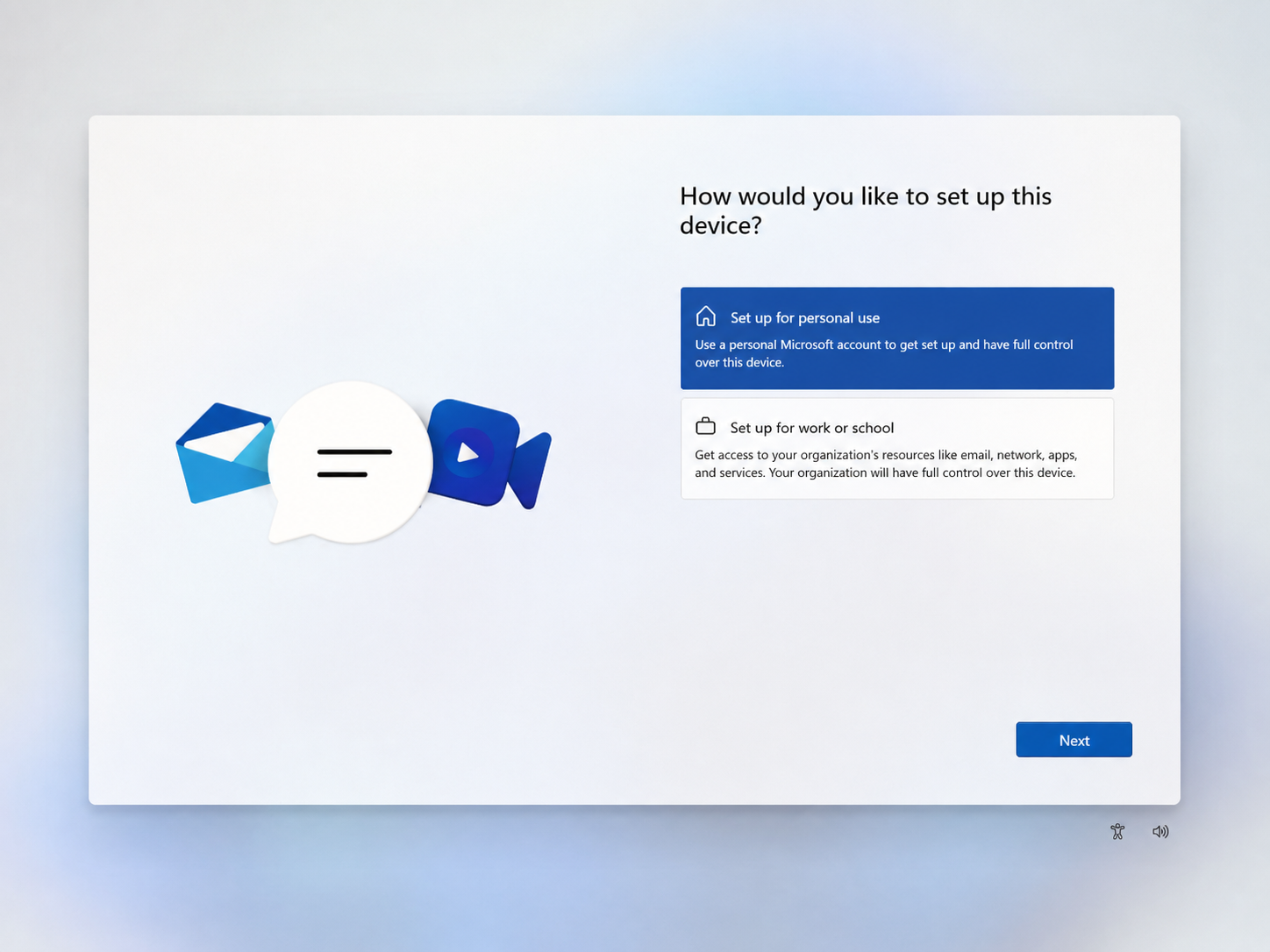
For a personal computer, choose Set up for personal use. Choose Set up for work or school only when the device is managed by an organization.
Windows Updates During Setup
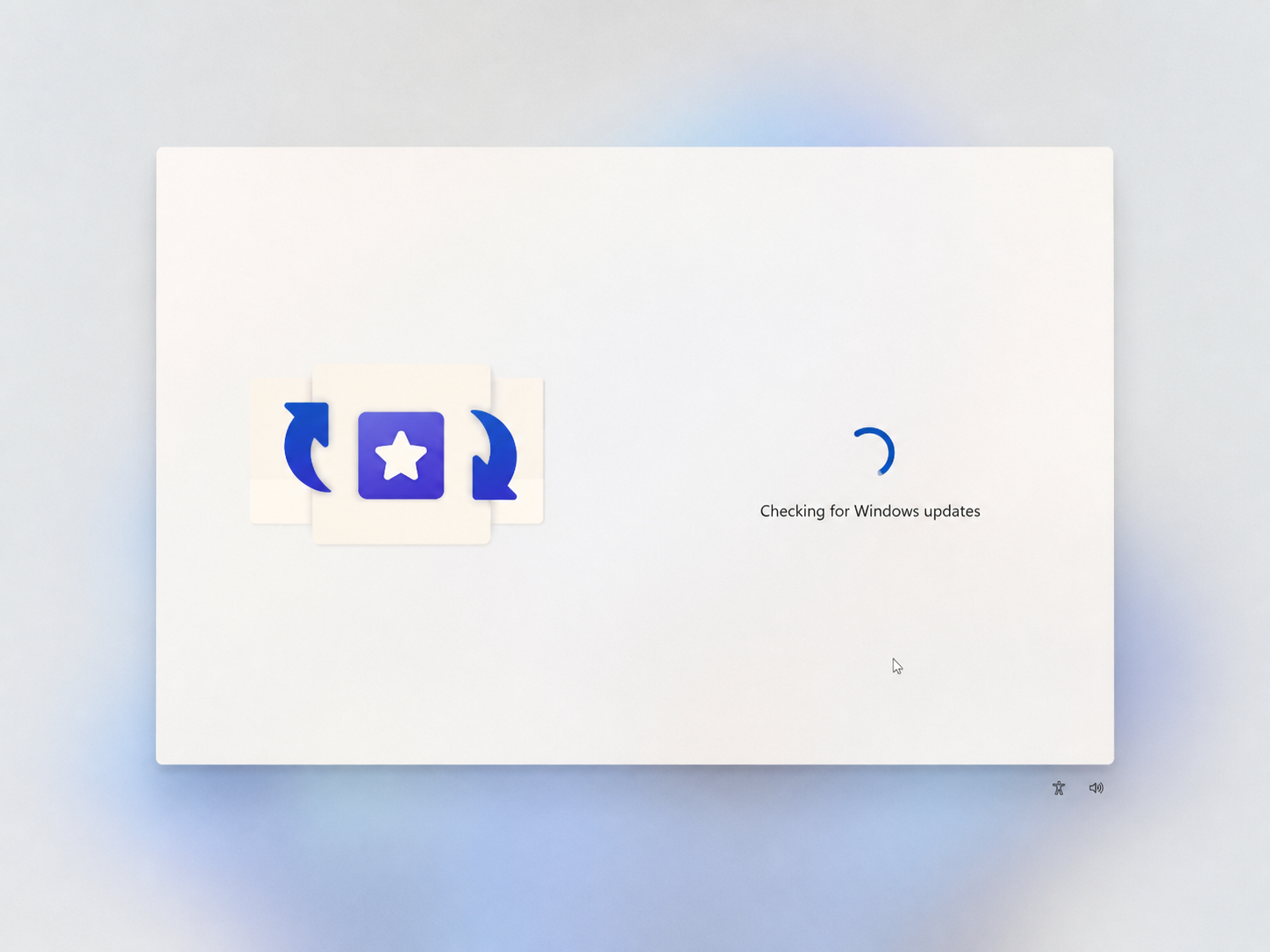
This screen is normal and can take several minutes. Please wait and do not turn off the computer.
PC-DNA uses the official Windows installation media from Microsoft. New security and quality updates may have been released after that installation image was created, so Windows checks for and installs them during setup.
Account, Privacy, and Finishing Setup
Follow the remaining Windows prompts to sign in or create an account, choose your privacy settings, and decide whether to restore a previous backup. You can skip optional offers, such as linking a phone, if you do not need them.
When the Windows desktop appears, setup is complete.
Installing Drivers
Most drivers install automatically once the computer is connected to the internet. If something is still missing:
- Laptops: search the laptop’s exact model on the manufacturer’s website.
- Desktop PCs: get drivers from the motherboard manufacturer’s website using the exact model.
- Graphics card: download drivers directly from NVIDIA, AMD, or Intel.
Need help getting online?
If Wi-Fi networks do not appear after installation, follow our guide: What to Do If Wi-Fi Does Not Work After Installing Windows.