
Browse Your Files
Use this module to quickly access files stored on your Windows system.
You can explore folders, open drives, and locate the files you want to keep before reinstalling or repairing Windows.
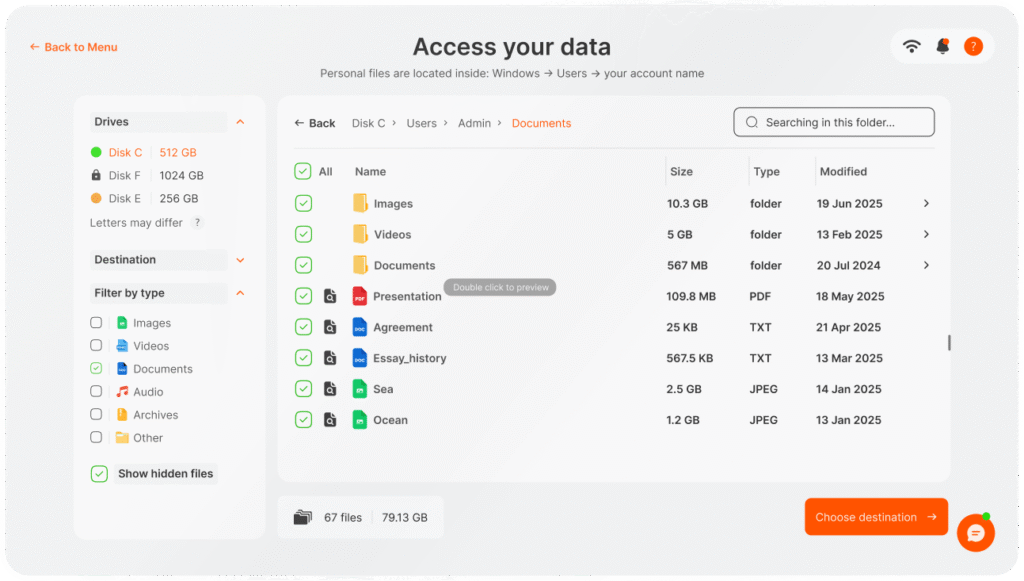
Where Your Personal Files Are
When you open the Windows drive, you will see many system folders that may look confusing.
To find your personal files, follow this exact path:
- Open the drive where Windows is installed (for example: C:, D: or G:).
- Open the folder Users.
- Open the folder with your account name.
- Inside it, look for folders like:
- Desktop
- Documents
- Downloads
- Pictures
- Music
- Videos
Most of your personal data lives in paths like:
C:\Users\YourName\Desktop
C:\Users\YourName\Documents
C:\Users\YourName\Pictures
If you are not sure which folder is yours, choose the one that matches the name you see on the Windows sign-in screen.
File Preview
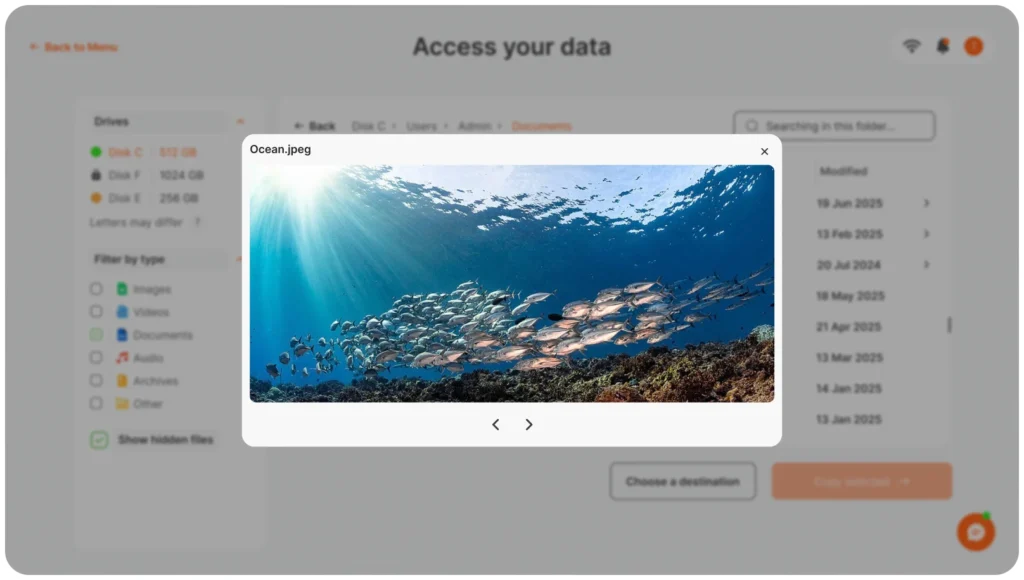
For easier navigation, you can preview some file types directly in the interface.
This is useful if you are not sure whether you found the right file.
Supported formats include common text and document types (for example .txt, .log, .docx) and some image formats (for example .jpg, .png).
Preview support is limited for now, and we plan to expand it in future updates.
Select and Copy Files
Once you find the files you want to keep, select them and choose where to copy them.
You can transfer files to:
- the storage space included on your PC-DNA USB
- an external hard drive
- another USB device
USB Storage Limit
The built-in storage on your recovery USB has limited space (about 5 GB).
It is designed for essential documents, photos and configuration files, not for full system backups.
For large folders – such as photo libraries, videos or game folders – always connect an external drive and copy them there instead of the recovery USB.
Sorting and Filtering
To make searching easier, you can:
- sort files by date, name or size
- filter by file type
This helps you quickly locate the most important data instead of scrolling through every folder.
Transfer Time
Depending on file size and the speed of your drives, copying may take some time.
If the progress bar moves slowly, this is usually normal for large folders and many small files.
Just let the transfer finish before you close the tool or unplug any drives.