
Step 1 – Before You Start
- The computer is plugged in
- The PC-DNA USB drive is inserted
- Your keyboard is connected (wired works best)
- If you’re on a laptop — charge it or plug it in
Step 2 – Restart and Enter BIOS (UEFI)
The BIOS (also called UEFI) is a built-in setup screen that appears before Windows starts.
This is where we change the boot settings.
Restart your computer and, as soon as the screen turns black, tap the key repeatedly (about once per second).
Most common BIOS keys in the U.S.:
| Brand | Key |
| HP | F10 or ESC |
| Dell | F2 or F12 |
| Lenovo | F1 or F2 or Fn + F2 |
| ASUS | F2 or DEL |
| Acer | F2 or DEL |
| Surface | Press and hold Volume Up while restarting |
| MSI / Custom PCs | Del |
If Windows loads normally, restart and try again.
Some laptops require Fn + the key (example: Fn + F2).
Step 3 – Change Boot Order to USB
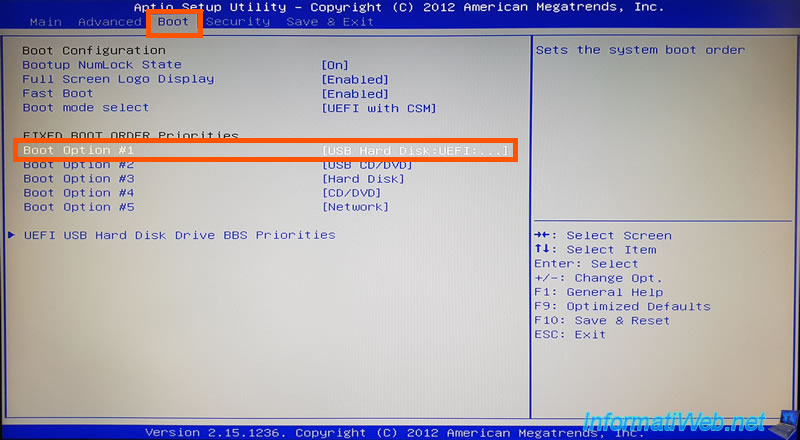
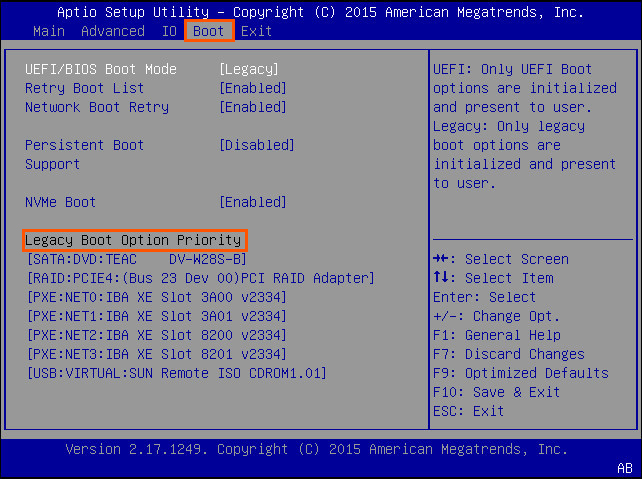
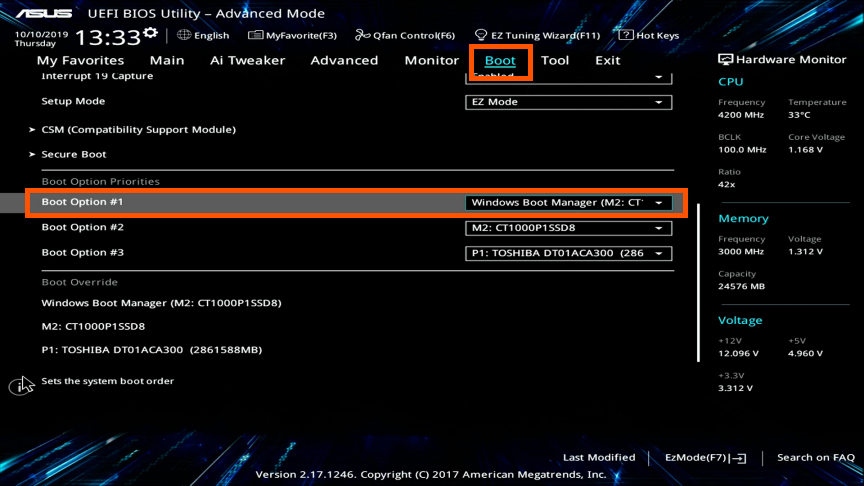
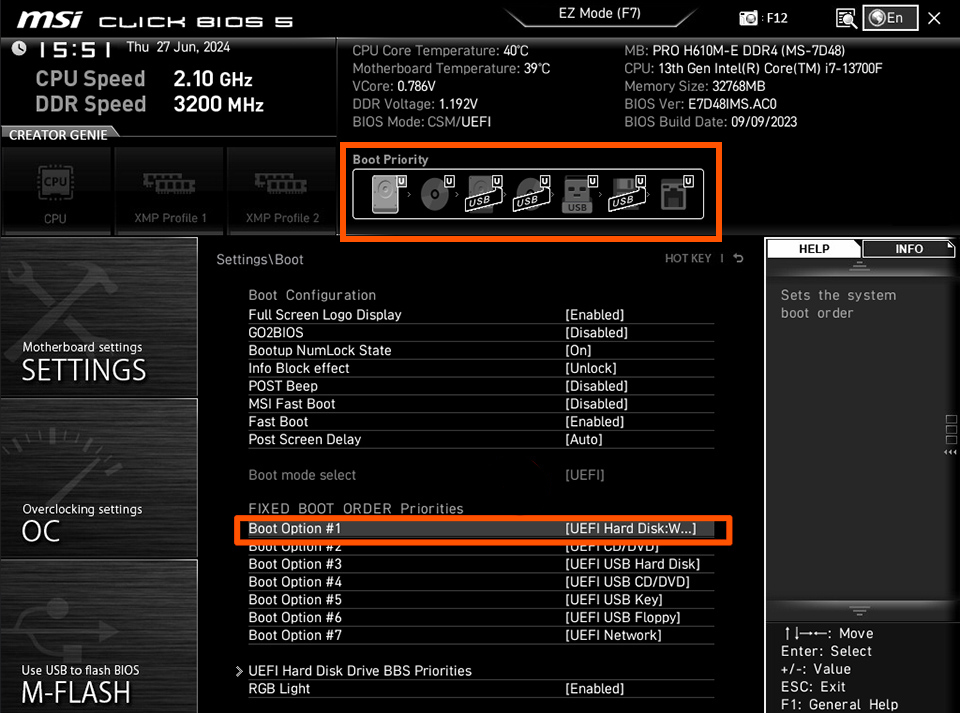
Once you’re inside the BIOS, the layout may look different depending on the computer brand. Some BIOS screens are blue and text-based, others look more modern with a mouse pointer. That’s normal.
Your goal in this step is simple:
Make the USB drive the first device in the boot priority list.
How to Navigate
- Use the arrow keys to move around
- Press Enter to open a section
- Press Esc to go back
- On newer BIOS versions, you may be able to use the mouse
If your screen looks confusing — don’t worry. Every BIOS uses different naming, but the steps are always the same.
Find the Boot Order Settings
You now need to open the section that controls how the computer starts and change the boot order.
- Boot
- Boot Options
- Boot Priority
- Startup
- Boot Configuration
- Advanced Boot
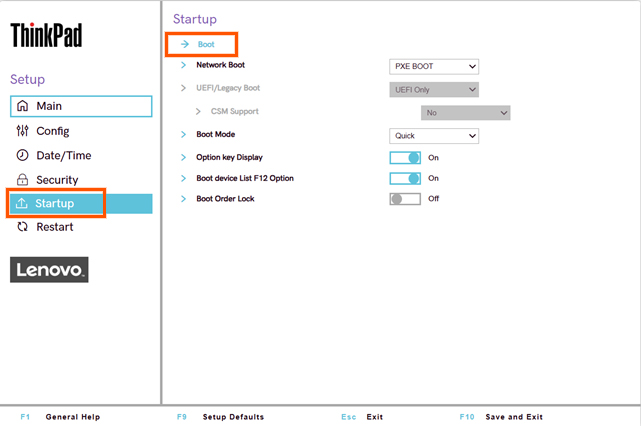
Put the PC-DNA USB in the First Position
Select the PC-DNA USB entry in the boot order list.
If it looks different on your screen, it may appear as:
- PC-DNA USB
- USB Storage
- UEFI USB
- Removable USB Device
Can’t see the drive in Boot? Open this guide →
Step 4 – Save and Restart
Press F10 or select Save & Exit to apply the changes.
Your computer will restart and boot into the PC-DNA Assistant.